Fix a bug
Say your request
Fix the login error and add a regression test.
On your remote
Hold the configured voice button, then release.
In your app
Codex prepares a code change for you to review.
How it works
SayRemote translates Siri Remote gestures into Mac pointer movement, scrolling and shortcuts. Pair it, choose a preset and try one action at a time.
v0.2.3 beta · Apple silicon · macOS 13+
Remote not included

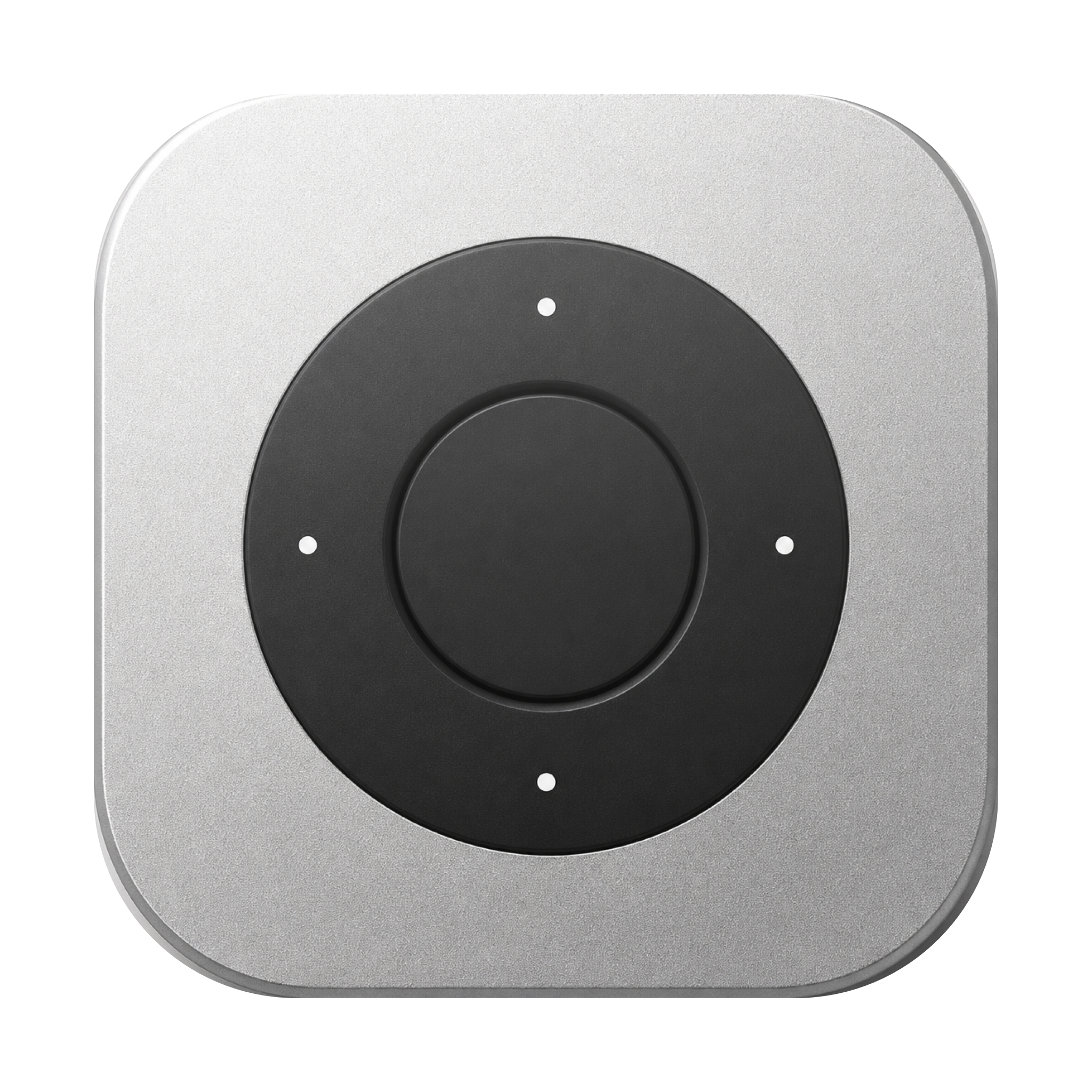
The clickpad behaves like it does on your TV. Up, down, circular scrolling—everything responds predictably on your Mac screen.
Click the center for primary actions or mapped decisions in your chosen profile.
Quick onboarding
Start with button control and your Mac’s microphone. Add the advanced remote microphone only if you need it.
Unzip the download, move SayRemote to Applications, then open the app.
Pair in Mac Bluetooth settings. Grant Accessibility and Input Monitoring.
Open Buttons to choose a remote button and assign its action. Test the mapping in the active app.
Hold Back and Volume Up together near your Mac for about 5 seconds, then select the remote in Bluetooth settings.
Follow the app: choose your remote, pair it, grant the required permissions, then review the gestures.
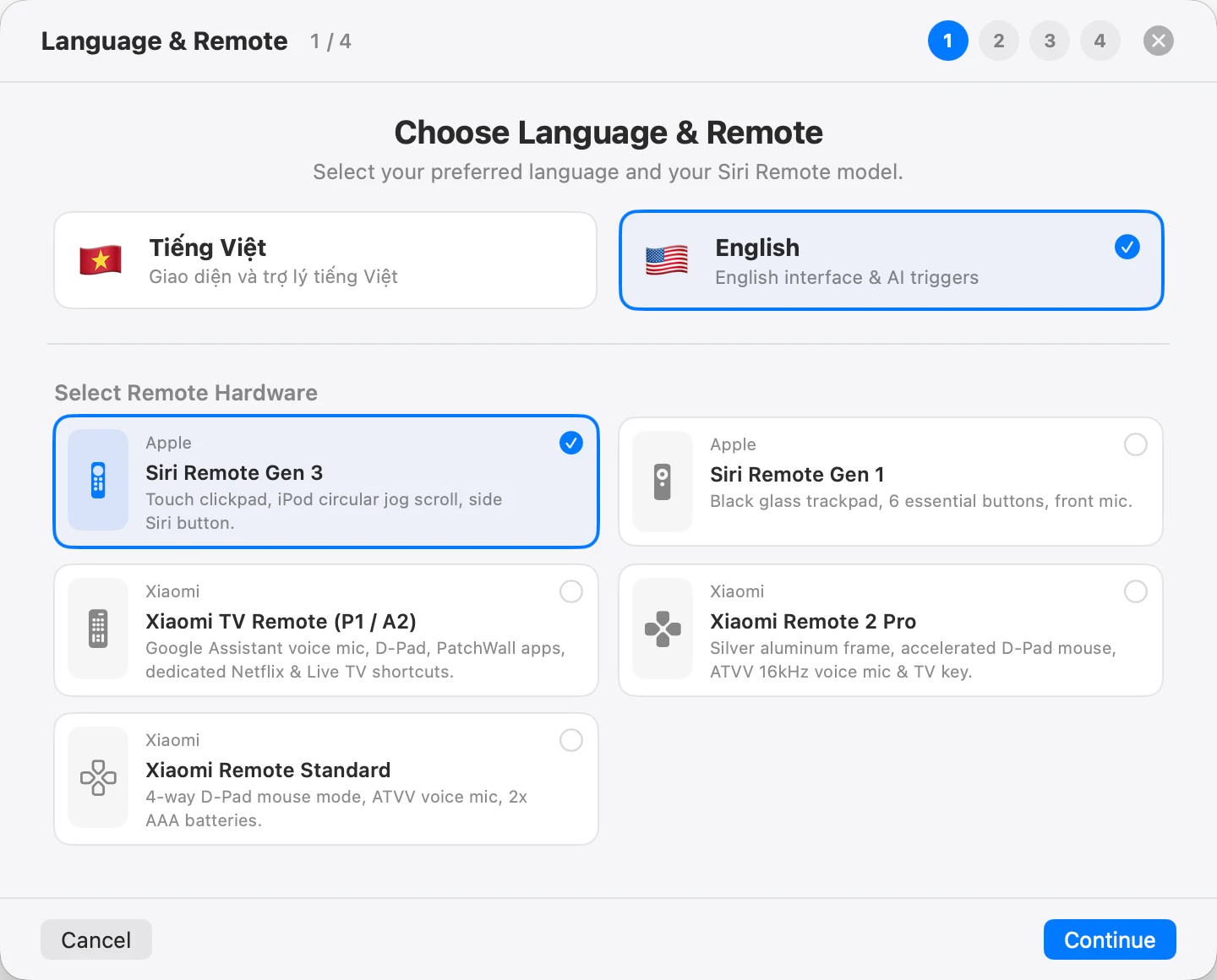
Choose the interface language and the remote model you own.
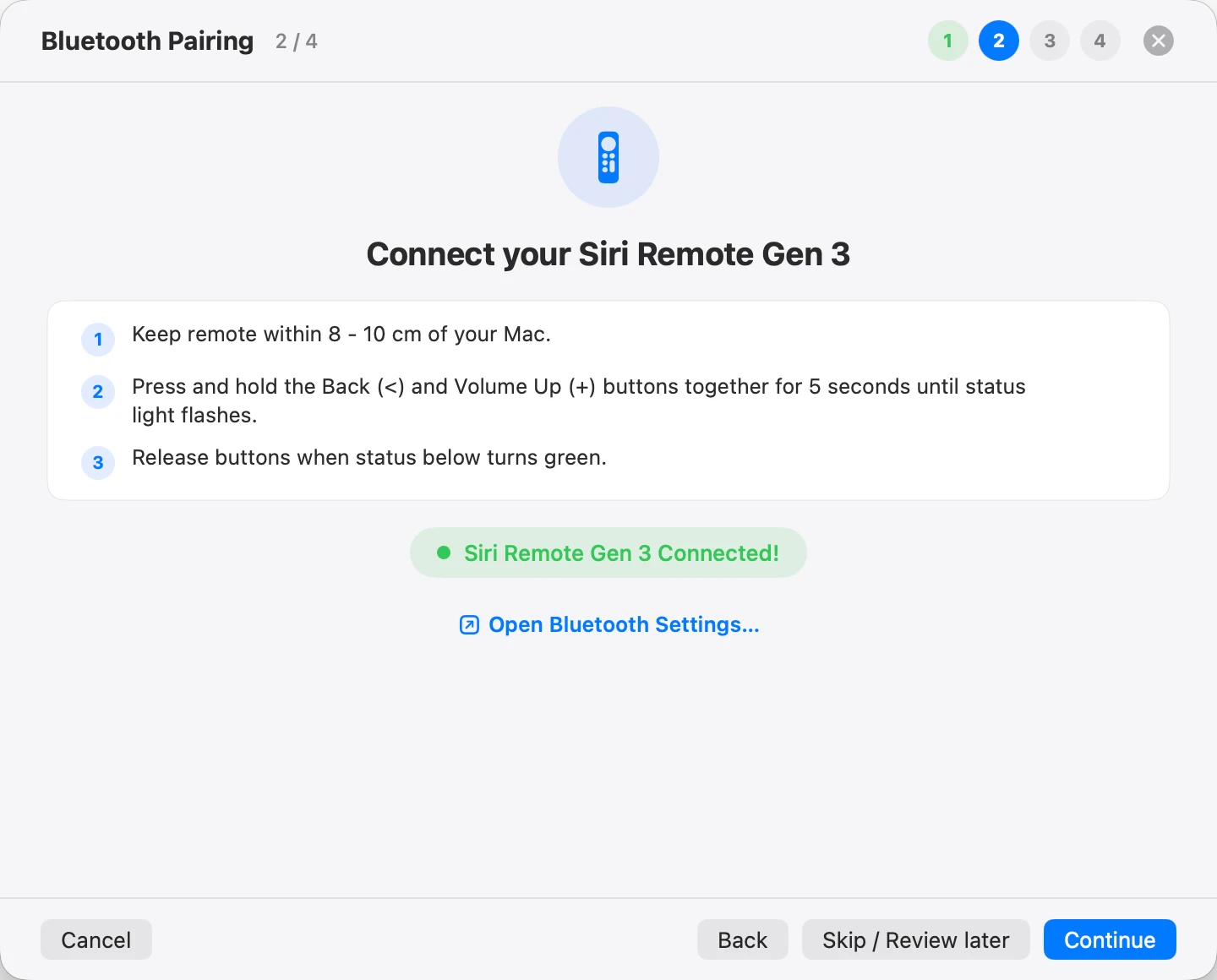
For the Siri Remote Gen 3 shown here, keep it near the Mac and hold Back + Volume Up as instructed until connected. Follow the instructions for your model.
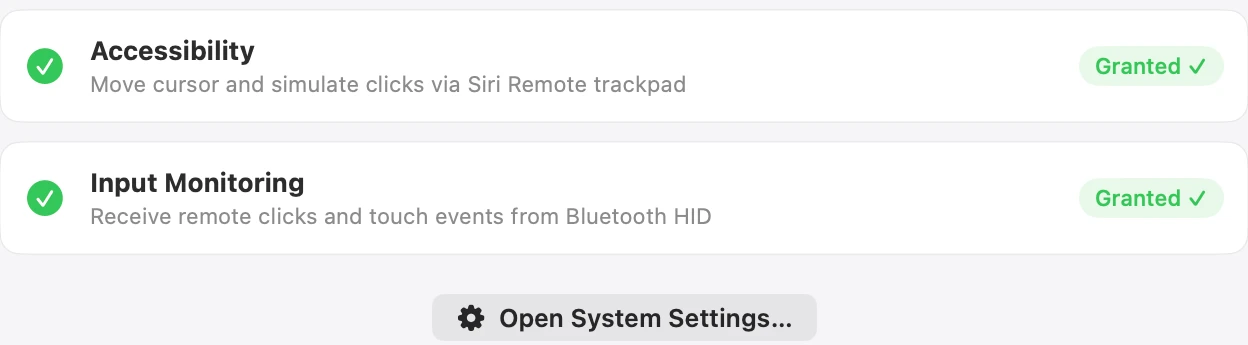
Accessibility enables pointer actions and shortcuts; Input Monitoring receives remote input. Voice may also need microphone permission.
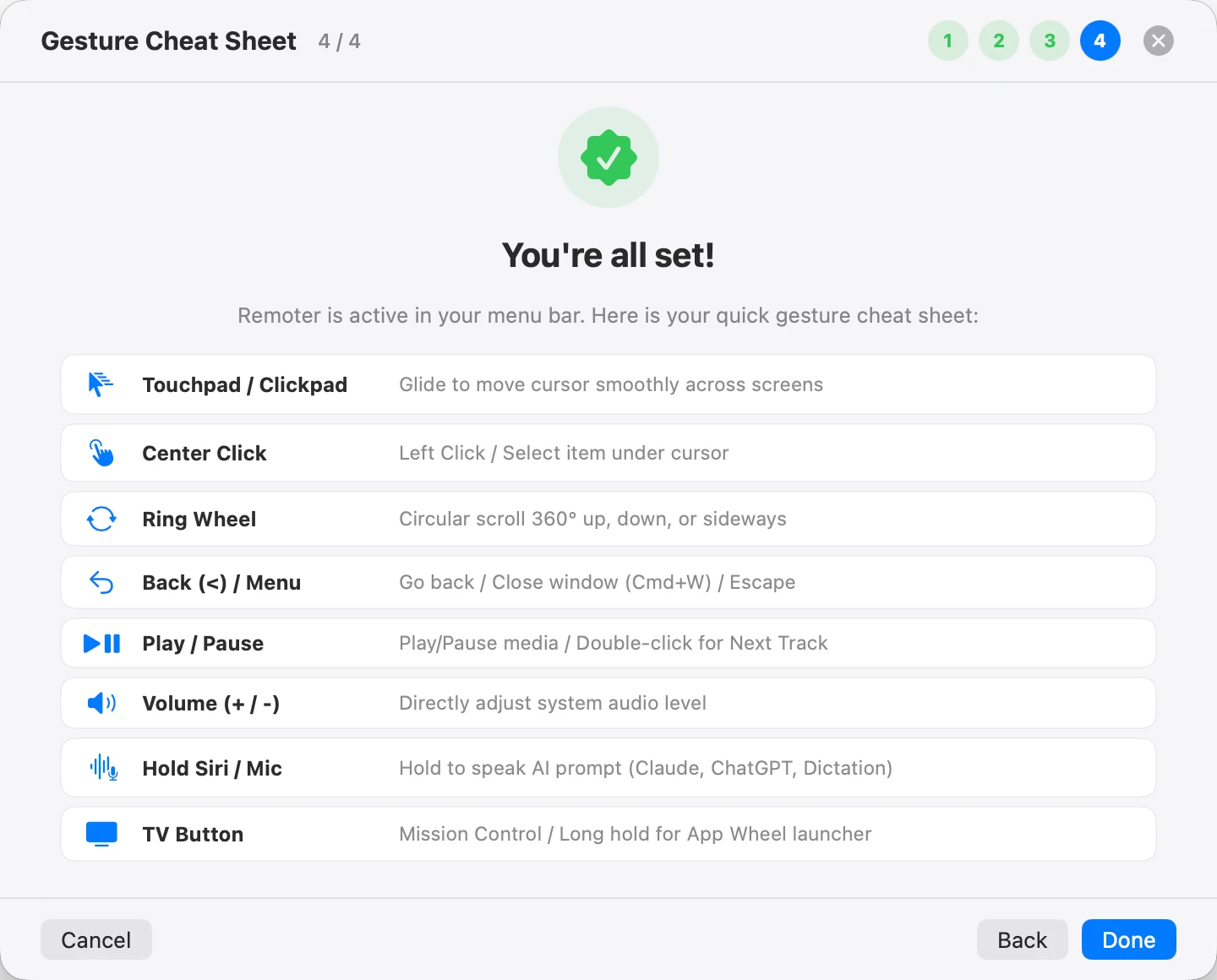
Use the app’s gesture sheet as a starting point, then check your Buttons settings for the actions you have assigned.
Author-provided app screenshots; interface language and options depend on the captured version.
Install, pair and assign a shortcut in the Buttons screen. Try it in the focused app before adding more actions.
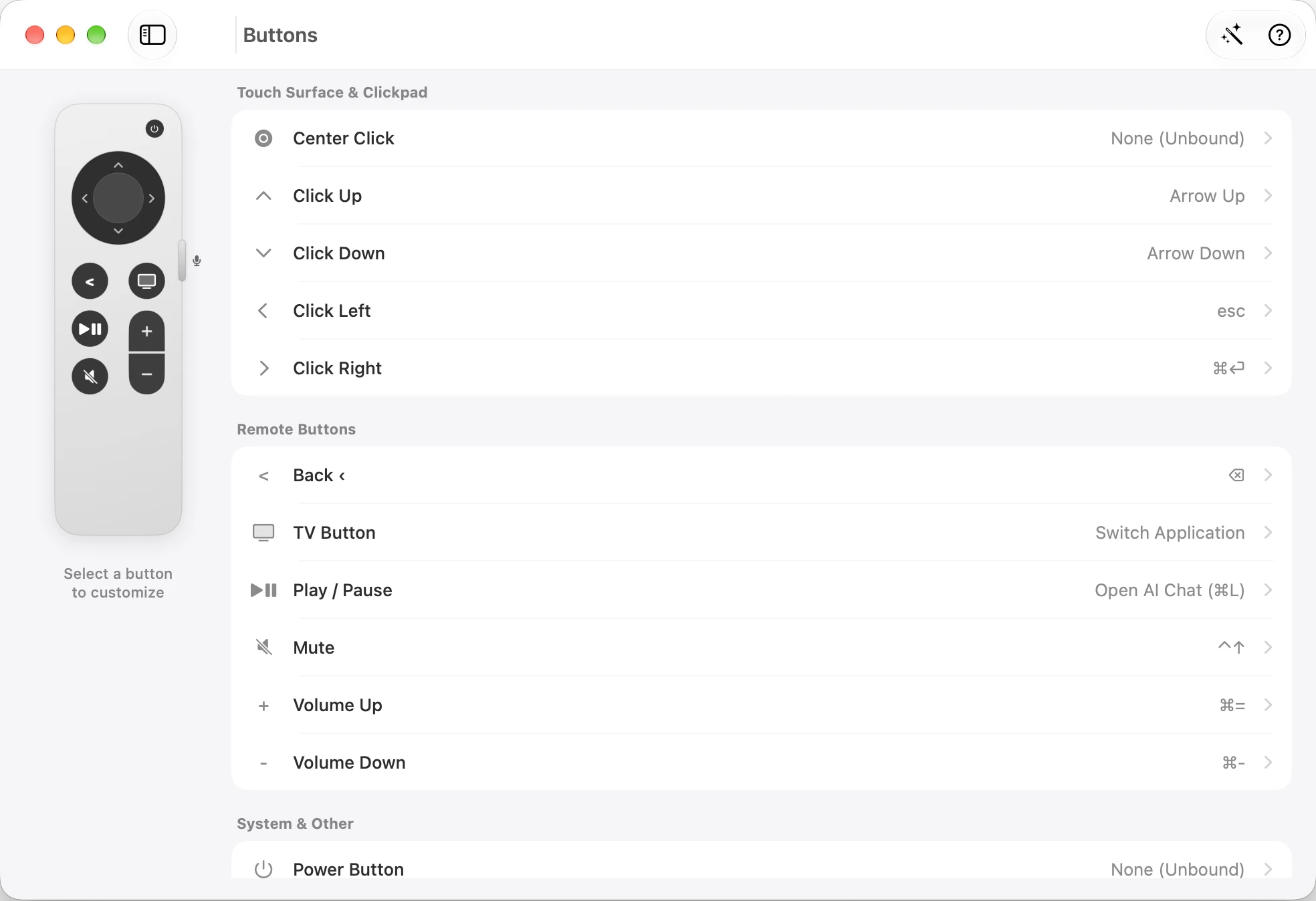
Open Buttons, select a control on the remote, then choose its action.
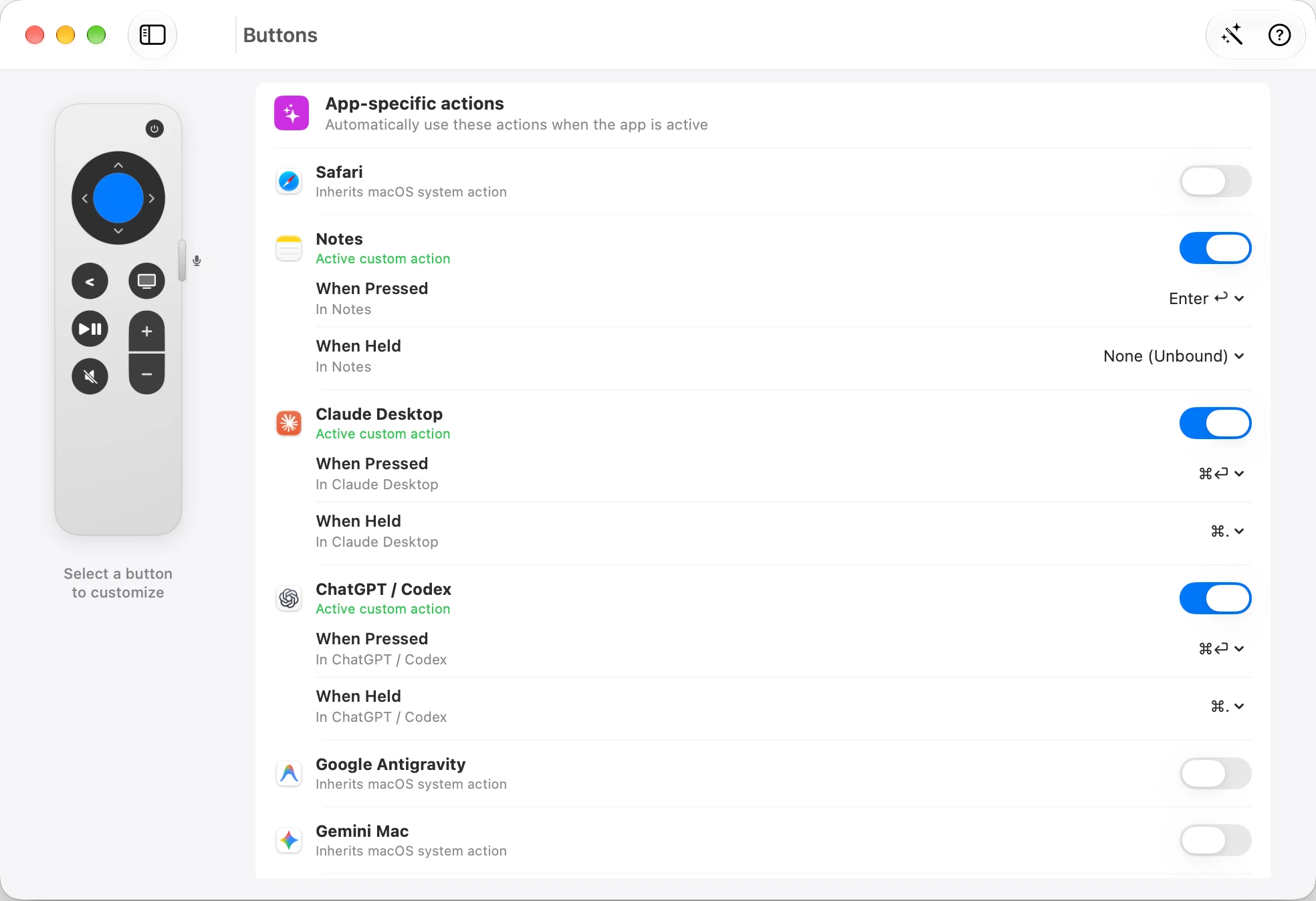
Keep a default action and customize it for the app in front, including the ChatGPT / Codex and Claude Desktop entries shown here.
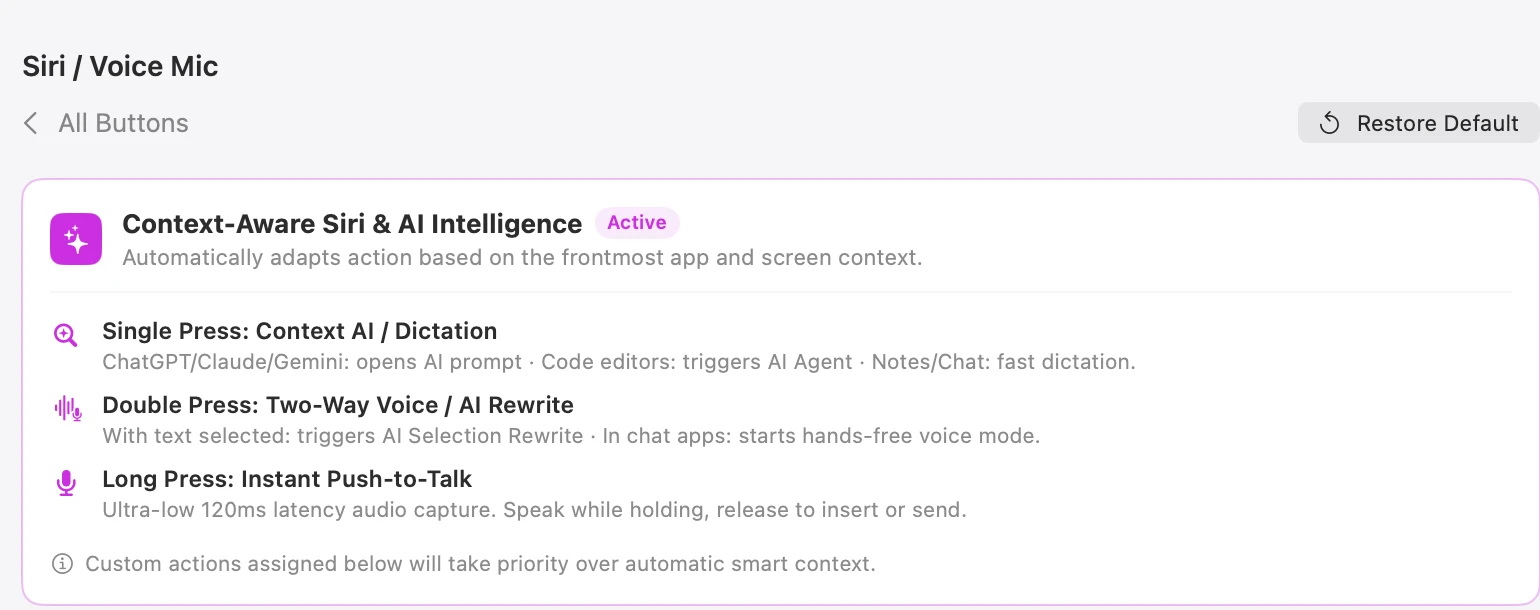
The Siri configuration separates single, double and long presses. Custom actions take priority over automatic context.
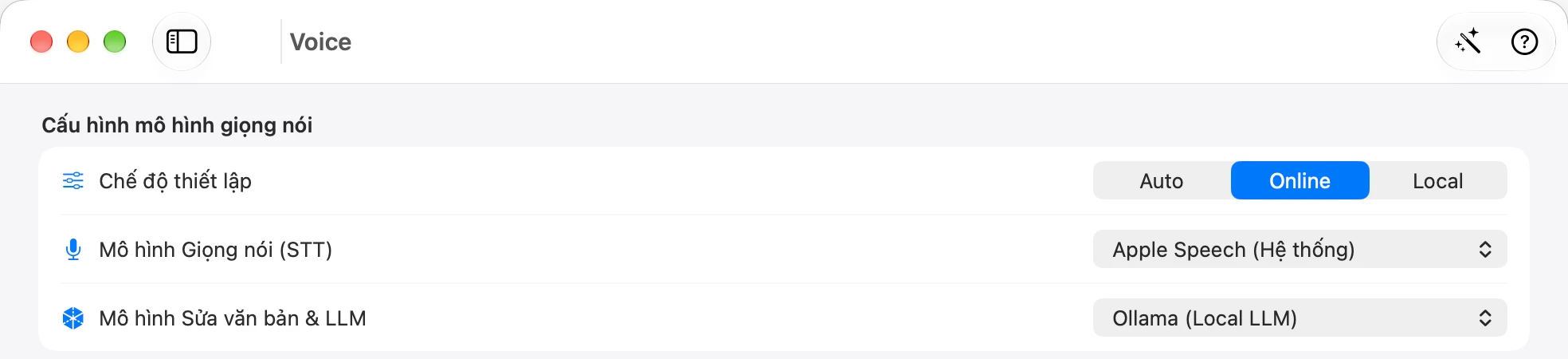
Voice shows Auto, Online and Local modes, plus separate speech recognition and text-model choices. Processing depends on the providers you select.
Author-provided app screenshots; interface language and options depend on the captured version.
Voice shows Auto, Online and Local modes, plus separate speech recognition and text-model choices. Processing depends on the providers you select.
Voice shows Auto, Online and Local modes, plus separate speech recognition and text-model choices. Processing depends on the providers you select.
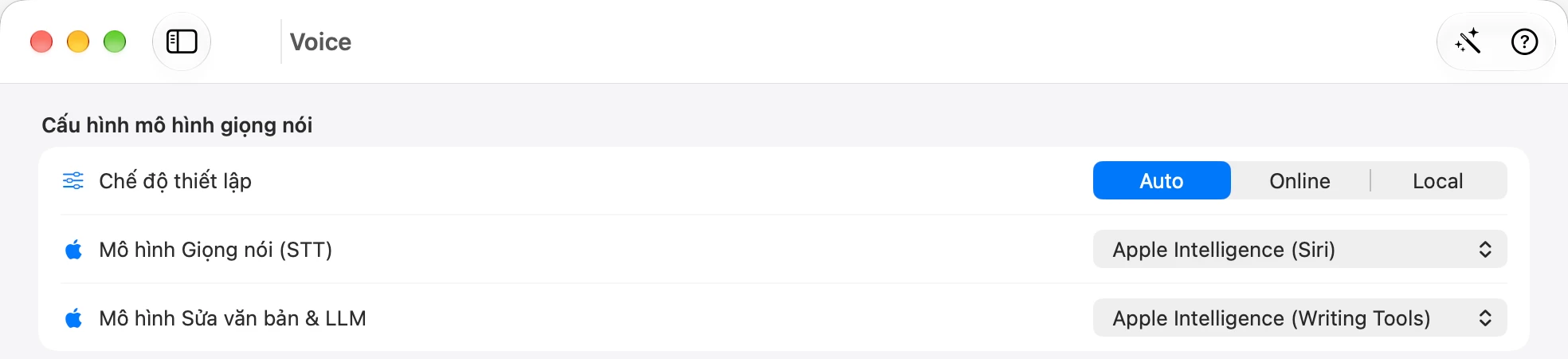
This capture shows Apple Intelligence selected for speech and text. Availability depends on your Mac and system configuration.
Author-provided app screenshots; interface language and options depend on the captured version.
A small preview
Send the sample request, compare the result, then decide what to keep.
Your voice prompt
Add a loading state to the login button. Prevent duplicate submissions.
Proposed change
The button is disabled while signing in. The label changes to “Signing in…” until the request finishes.
Before
Repeated clicks can submit again.
After
Extra clicks are blocked while loading.
Tap to see the loading state. No real sign-in happens.
The proposed change was not applied.
This is a scripted preview. No microphone, AI account or Mac connection is used.
Actions depend on the app, preset and focused window. SayRemote sends your configured shortcuts; you stay in charge.
YOUR APPS. REAL TASKS.
Choose an app. See how voice and a few buttons fit your work.
Fix the login error and add a regression test.
Hold the configured voice button, then release.
Codex prepares a code change for you to review.
Explain this diff and flag anything risky.
Scroll the ring to review. Use your assigned approval shortcut.
Read the diff, then approve or request a revision.
Now add an empty state to this screen.
Focus the input, dictate, then send with your assigned button.
Continue the same task without returning to the keyboard.
Explain this test failure and suggest a fix.
Hold the configured voice button, then release.
Claude explains the cause and a possible next step.
Check this patch for edge cases.
Scroll the ring to review. Use your assigned approval shortcut.
Review the proposal before running or accepting it.
Make this solution simpler and explain the tradeoff.
Focus the input, dictate, then send with your assigned button.
Ask a follow-up in the conversation you already opened.
Draft a short update for my team about this launch.
Hold the configured voice button, then release.
ChatGPT turns your spoken brief into a draft.
Give me three examples for the second point.
Focus the input, dictate, then send with your assigned button.
Extend the answer with the detail you need.
Read the answer already on screen.
Circle the clickpad ring; stop at the part you need.
Move through a long answer without reaching for a mouse.
Summarize these pasted notes into five action items.
Hold the configured voice button, then release.
Gemini summarizes the content you provided.
Compare these two ideas by effort and impact.
Focus the input, dictate, then send with your assigned button.
Get a comparison to help you decide.
Rewrite this paragraph in a warmer, shorter style.
Focus the input, dictate, then send with your assigned button.
Review a revised draft inside Gemini.
Read the documentation already open.
Circle the clickpad ring; stop at the part you need.
Pause at the example or reference you need.
Move between your open reference tabs.
Use your assigned next-tab and previous-tab buttons.
Keep your references within reach.
Dictate into a focused search or text field.
Hold the configured voice button, then release.
Your configured dictation inserts text; you choose when to send.
Workflow examples after configuring voice and app shortcuts. SayRemote sends input; your app handles the task. Review before approving. Assigned profiles can follow the frontmost app, such as Safari, Keynote, Spotify, VS Code, Finder, or YouTube.
Open Buttons to choose a remote button and assign its action. Test the mapping in the active app.
Full Setup adds a CoreAudio plug-in and a root capture service. With PacketLogger available, it uses Bluetooth diagnostic capture to receive remote audio. This relies on an undocumented Apple protocol and can vary across macOS versions. Use the supplied uninstaller to remove the stack.
It adds the virtual microphone and a privileged capture service. Remote audio also needs Apple’s PacketLogger and additional permissions. Start with app-only if you just want control and your Mac microphone.
SayRemote is a Mac app. It maps Siri Remote Gen 3, Gen 1, Xiaomi Remote 2 Pro, or Xiaomi Remote Standard to pointer movement, scrolling and shortcuts. The remote is not included.
Keep your keyboard for detailed edits. SayRemote gives you another way to prompt, navigate and trigger frequent actions while reviewing work.
Yes, by pairing it back to Apple TV. It controls the device it is paired with; switching is not simultaneous. Follow Apple’s pairing instructions.
Apple pairing guideVoice processing depends on your engine and settings. Local options include Apple Speech, WhisperKit and Ollama. Cloud providers such as Gemini and OpenAI send data to the service you choose and may charge fees.
No for buttons, scrolling and voice through the Mac microphone. Full Setup is only for remote audio, if your setup meets its additional requirements.
Not yet. You can download the current beta here. The planned app price is $19 once; license, refund and update terms will be confirmed before sales open.
The app menu lists Siri Remote Gen 3, Siri Remote Gen 1, Xiaomi Remote 2 Pro and Xiaomi Remote Standard. Gen 3 is the documented setup. Touch ring and audio capabilities depend on the model.
Try one workflow with the remote you already have.
v0.2.3 beta · Apple silicon · macOS 13+
Remote not included